
“Comma-separated values” (CSV) is a widely used file format for storing tabular data, including numbers and text, as plain text. Its flexibility has made it popular across a wide range of applications and programs. CSV files allow users to easily preview data, identify and correct problems, make quick modifications, work with different languages and characters and adjust delimiters, quoting rules and other settings.
On microWorkers, our system is designed to accept CSV files that comply with the UTF-8 standard, whether you are using the Standard (HG section) or (TTV) platform.
💡More information about using CSV files in campaigns is available here.
If you use Microsoft Excel or Microsoft Notepad (Windows), or TextEdit (Mac), to work with CSV files, everything should work properly when the file contains only English characters. However, your campaign may encounter issues when the CSV file contains data in another language or includes non-English characters such as é, ç, ü, and others.
In this article, we will explain how to save or convert your CSV file using the UTF-8 encoding standard while keeping all special characters and foreign symbols intact. This will help ensure that your campaign works properly.

 Note: The methods described below work with Microsoft Excel 2007, 2010, and 2013. However, some terminology may differ slightly between versions.
- Creating a CSV file containing English characters
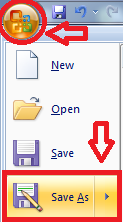
1. Click Office Button/File in the menu bar and select the Save As option.
2. In the resulting window, select CSV (comma delimited) as the desired ‘File Type’.
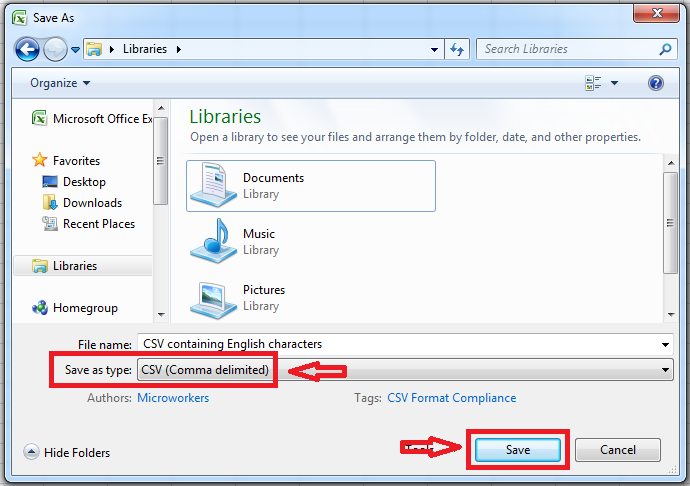
3. Click the Save button to save the CSV file to your computer.
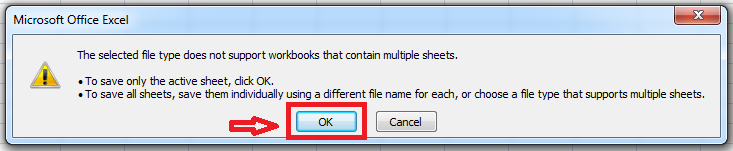
4. After you click Save, two dialog boxes will appear. There is no need to worry, as these are not error messages and the process is working as expected.
5. The first dialog informs you that only the active Excel worksheet will be saved in CSV format. Simply click OK.
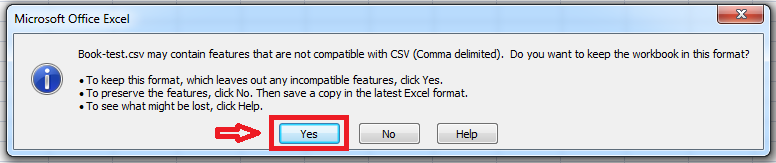
6. After confirming the first dialog, a second message will appear informing you that your worksheet may contain features that are not supported by the CSV format. This is also expected, so simply click Yes. Your CSV file is now ready to use in your campaign.
- Creating a CSV file containing non-English characters
Once you have finished creating a CSV file in another language or a CSV file containing special characters, follow the steps below to ensure that it complies with the UTF-8 standard.
1. Click Office Button/File in the menu bar and select the Save As option.
2. In the resulting window, select Unicode Text as the desired ‘File Type’.

3. Click the Save button to save the file to your computer. The file will be saved with a .txt filename extension.
4. After clicking Save, two dialog boxes will appear. Click Yes and then OK to continue.
5. Open the Unicode text file you saved using Notepad. Some characters may not display correctly, but you can ignore this. This may happen because Notepad cannot display certain Unicode characters properly.
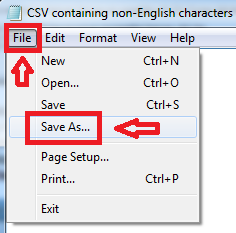
6. Click File in the menu bar and select Save As.
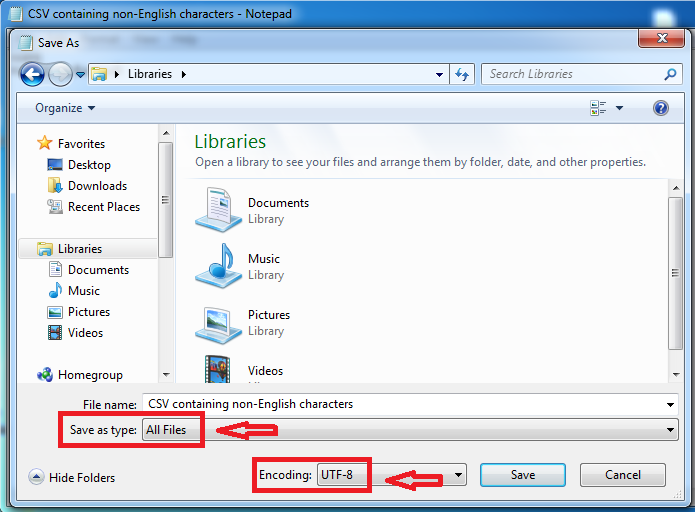
7. Select All Files as the desired ‘File Type’ and change the Encoding to UTF-8.
8. Change the file extension from *.txt to *.csv.
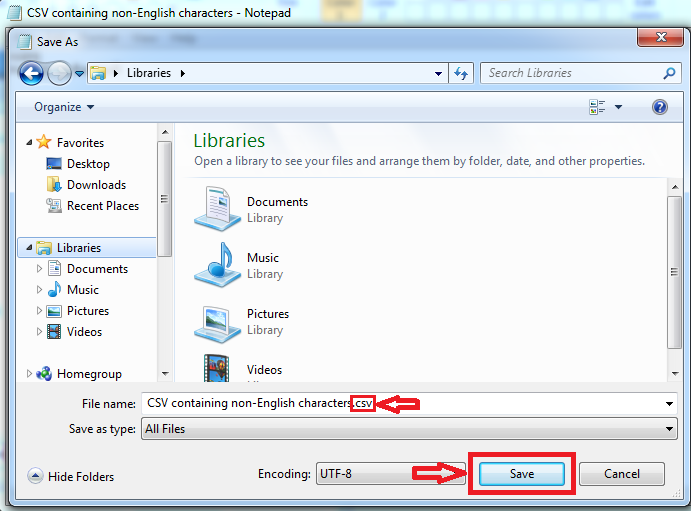
9. Click Save, and you are done. A properly formatted CSV file will be created using UTF-8 encoding while preserving all foreign and special characters. You can now use this CSV file in your campaign.

- Creating a CSV file with UTF-8 standard using TextEdit
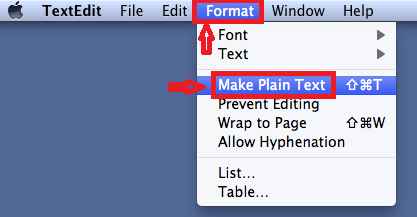
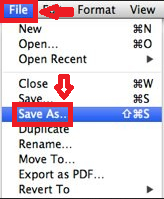
1. Under the Format tab in the menu bar, choose Make Plain Text.
2. Click File in the menu bar and select the Save As option.
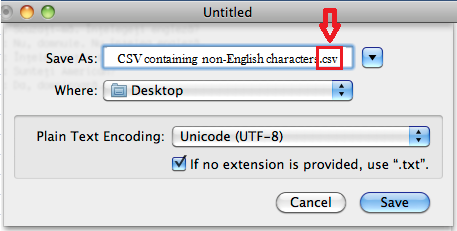
3. Change the file extension from .txt to .csv.
4. Select Unicode (UTF-8) as the Plain Text Encoding and click Save.
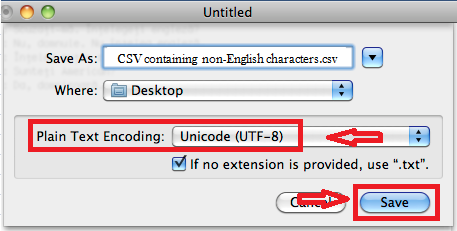
That is all. Your saved CSV file is now ready to use.
FAQ
– How can I encode a premade non-UTF-8 CSV file to UTF-8 on Windows OS?
Simply follow the instructions under “Creating a CSV file containing non-English characters”, starting from Step 5. It only takes a few quick steps.
– How can I encode a premade non-UTF-8 CSV file to UTF-8 on Mac OS?
Open your non-UTF-8 CSV file in TextEdit and follow the instructions starting from Step 2 in the Mac-related section.
– Does the Microworkers system support CSV files delimited with Tabs, Semi-colons, Pipes, or Carets?
No. The system will only accept a Comma Delimited CSV file.
Until the next article, stay tuned 🙂 Do not forget to contact us if you have any questions or concerns.
You may also be interested in…
No Comments so far.
Your Reply