
After successfully utilizing the “Search Task feature” to review and evaluate campaign proofs efficiently, the essential process that follows is Rating the Tasks and managing the Reversal of Ratings. These features ensure that every evaluation remains fair, transparent, and consistent across all campaigns.
Visual Indicators for Task Status
To help both Employers and Workers monitor progress, Microworkers displays easy-to-recognize task status icons:
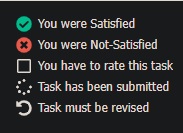
- You were Satisfied – Task was approved; the Worker met all requirements.
- You were Not-Satisfied – Task was disapproved due to incorrect or incomplete proof.
- You have to rate this task – Task is pending Employer’s evaluation.
- Task has been submitted – Worker has submitted the proof, and is currently awaiting admin review before appearing on the Employer’s page for rating.
- Task must be revised – Employer requested corrections before final approval.
These icons make it easy to track which tasks are done, pending, or need revisions. They help ensure that both sides stay organized during the rating process.
For Revision, the Chat feature is also available (if activated), enabling Employers and Workers to communicate directly. Employers can provide clear instructions on what needs to be fixed, and Workers can clarify questions or submit updates. This interaction minimizes errors and ensures that tasks are corrected before receiving a final rating.
Sample Rating Process Explained
1) Standard Platform
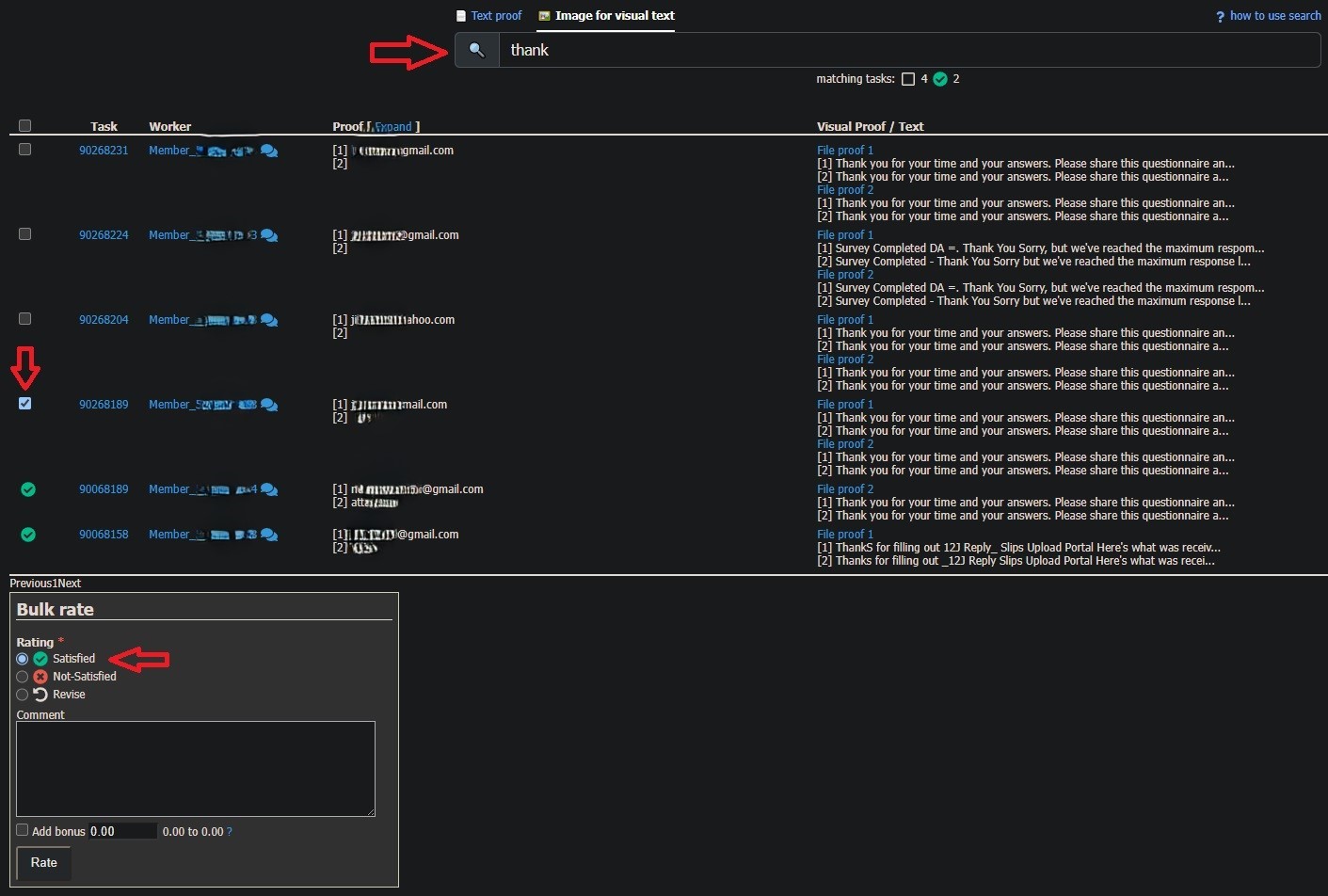
The image above illustrates how to perform a sample rating under the standard platform. To begin, type a keyword (for example, “thank”) in the Search bar at the top to quickly locate tasks containing that word in their proofs. Once the results appear, review the list of tasks shown below. Each task displays Task ID, Worker ID, and proof for reference.
Next, select the checkbox beside the task or tasks you wish to rate. In the sample image, one task has been selected. After selecting, scroll down to the Bulk rate panel. Here, you can choose a rating option. You may also add a comment to provide feedback or include a bonus amount before clicking the button to apply the chosen rating to all selected tasks.
2) TTV Platform
Under the TTV platform, the same rating options—Satisfied, Not Satisfied, and Revise—are available. In this section, we will focus on how to use the “Revise” and “Reverse” rating within the TTV platform.
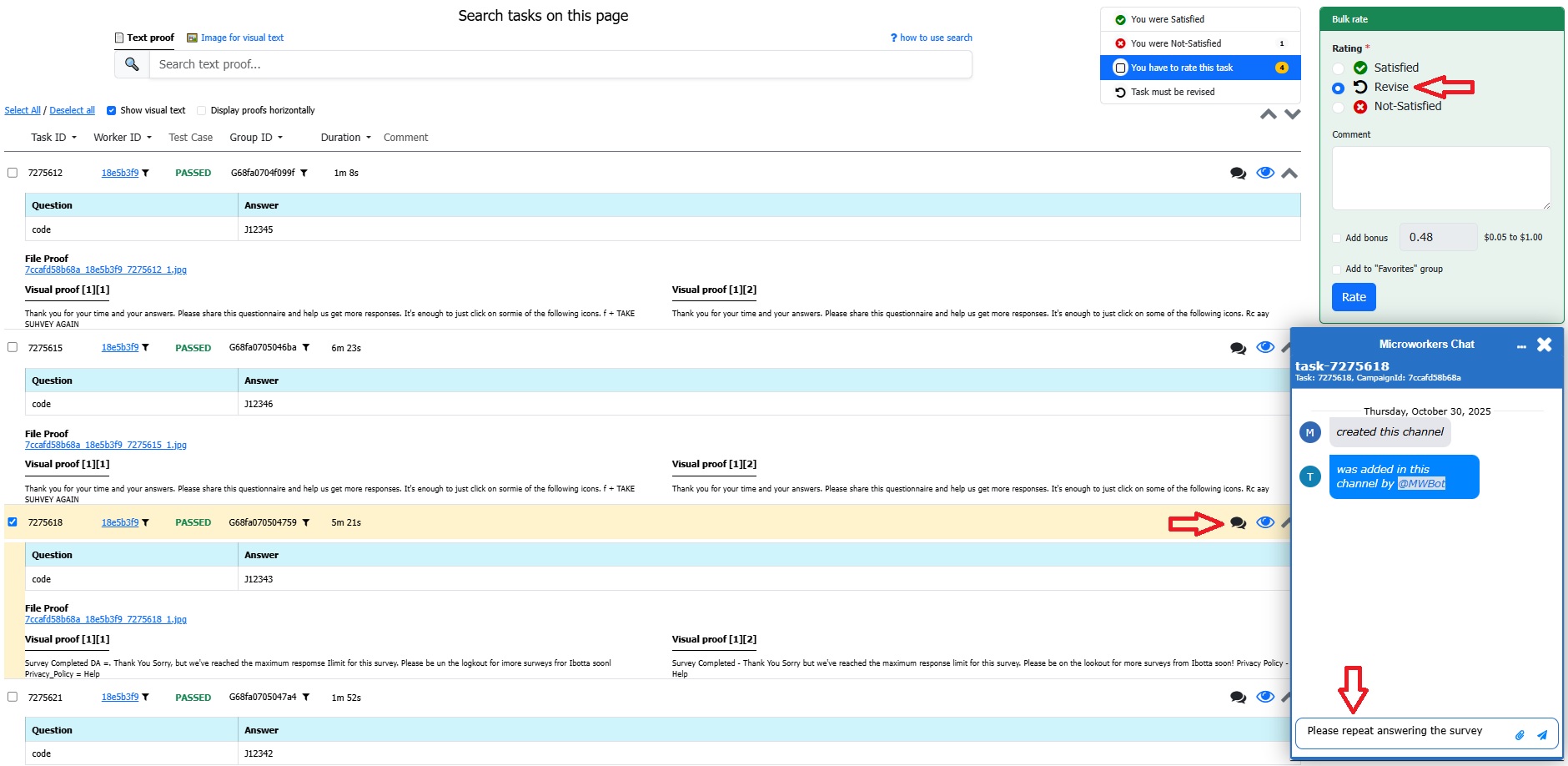
Once a task has been reviewed and found to need minor corrections or additional proof, Employers can select the “Revise” button in the Bulk rate panel. This action notifies the Worker that their submission requires modification before it can be approved. Instead of immediately marking it as “Not Satisfied”, the “Revise” feature allows collaboration—helping Workers understand exactly what needs improvement.
Employers can choose to use the “Revise” option or the Chat feature to revise a task. The Chat feature can be accessed at any time (if activated) and may be used as an alternative to the Revise option. It serves as a direct communication tool where Employers can send instructions, clarifications, or feedback to the Worker. For example, an Employer might write, “Please repeat answering the survey” or “Kindly attach a valid screenshot showing the full website URL.”
This flexibility allows Employers to decide the best way to handle corrections—either by formally requesting a revision or by guiding the Worker through Chat.
After the Worker submits the revised proof, the Employer can review it again and then finalize the rating as Satisfied or Not Satisfied, depending on whether the corrections were properly made.
Reversal of Rating
In some cases, Employers may realize that a task was rated incorrectly or that a Worker has provided sufficient clarification after receiving a “Not Satisfied” rating. To address this, the Reversal/Re-rate option is available, allowing Employers to change a previously submitted rating.
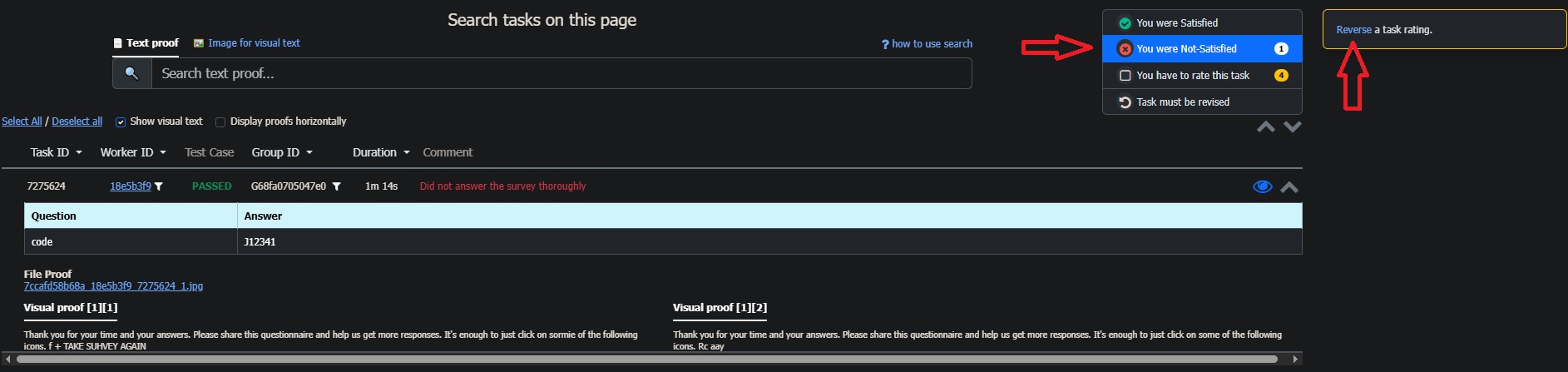
As shown in the image above, this option can be found at the upper right corner of the rating interface, beside the list of rating statuses. To reverse a rating, simply locate the task under the “You were Not-Satisfied” section and click “Reverse a task rating”.
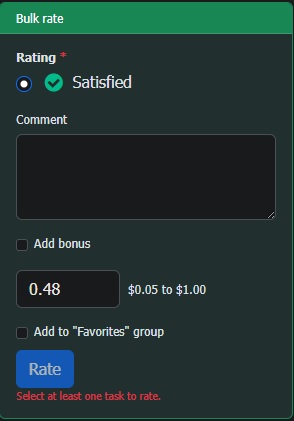
After clicking the “Reverse a task rating”, the Bulk rate panel (as shown in the image below) will appear, allowing you to re-rate the chosen task. You may choose to leave a comment, and even add a bonus before confirming the update.
💡 Note:
– Reversal/Re-rate of tasks may only be done when the campaign has been stopped or finished.
– Once a reversal has been made and finalized, it cannot be undone again. So Employers are encouraged to carefully review all proofs and communications before confirming the new rating. However, if further correction is genuinely needed, Employers may contact Microworkers Support for assistance in reviewing the case.
Final Thoughts:
Both the Standard and TTV platforms offer rating and reversal features that help Employers review tasks with fairness and accuracy. With options to rate, revise, or reverse/re-rate, every submission can be properly evaluated. These tools encourage open communication and trust between Employers and Workers, promoting transparency and efficiency across the Microworkers system.
By using these features effectively, Employers can maintain task quality while fostering a positive working relationship with their Workers. 😉
No Comments so far.
Your Reply