
Task review just got smarter. Scrolling endlessly through task submissions is now a thing of the past. With “Search Tasks” feature, Microworkers puts precision at Employers’ fingertips. Designed for efficiency, this feature helps Employers find exact proofs or submissions without the need for lengthy scrolling.
Smarter Search for a More Efficient Review Process
Employers will now see the “Search tasks on this page” section in the “Submitted Tasks” page. By default, searches are made through the text proof field. Employers can then easily locate specific words or phrases within worker submissions.
For campaigns that include file proofs, the feature goes a step further. Employers can also search by “visual text” which refers to text extracted from workers’ uploaded screenshots or image proofs. This means that even if proof is in image form, its visible text can still be detected and searched. A powerful addition for campaigns that rely heavily on screenshot submissions.
This functionality is available on both the Standard and TTV platforms. Employers can enjoy a consistent and efficient experience regardless of where their campaigns are managed.
How Visual Text Works Behind the Scenes
Through Optical Character Recognition (OCR) technology, the system converts image content into searchable text, making “visual text” possible.
This process takes a few minutes, typically a few minutes, after a task is submitted. The delay occurs as files are transferred to OCR servers, scheduled for recognition, processed, and then returned to the Microworkers system in batches.
To enhance accuracy, two OCR tools are used, labeled as [1] and [2] in the Visual Proof / Text section. Each tool’s performance may vary depending on the image’s clarity, font style, colors, and language, ensuring better recognition coverage across different proof types.
How to Use Search
The Search Tasks feature supports advanced queries. It allows Employers to refine their search results based on specific keywords or phrases.
Here’s how it works:
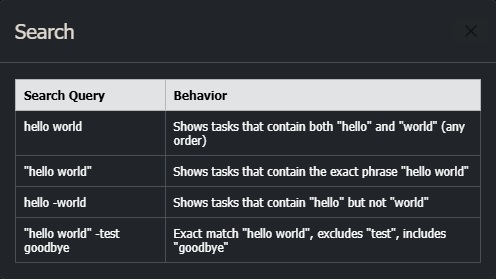
For example, if you know the correct proof answer is “thank you,” you can type thank you in the search bar to display all correct proofs containing that phrase.
If you type -thank you, it will display tasks that include the word “you” but not “thank.” In this case, the only matching task would be “you.”
Also, the keyword to be searched is not case-sensitive. The search will recognize both “THANK YOU”, “thank you” and “Thank You” as the same phrase.
Search Task under the Standard Platform
The Search Tasks feature under the Standard platform is designed to be straightforward and user-friendly. On this page, Employers will find a search bar where they can enter a keyword or phrase to locate specific submissions, whether from text proof or image for visual text.
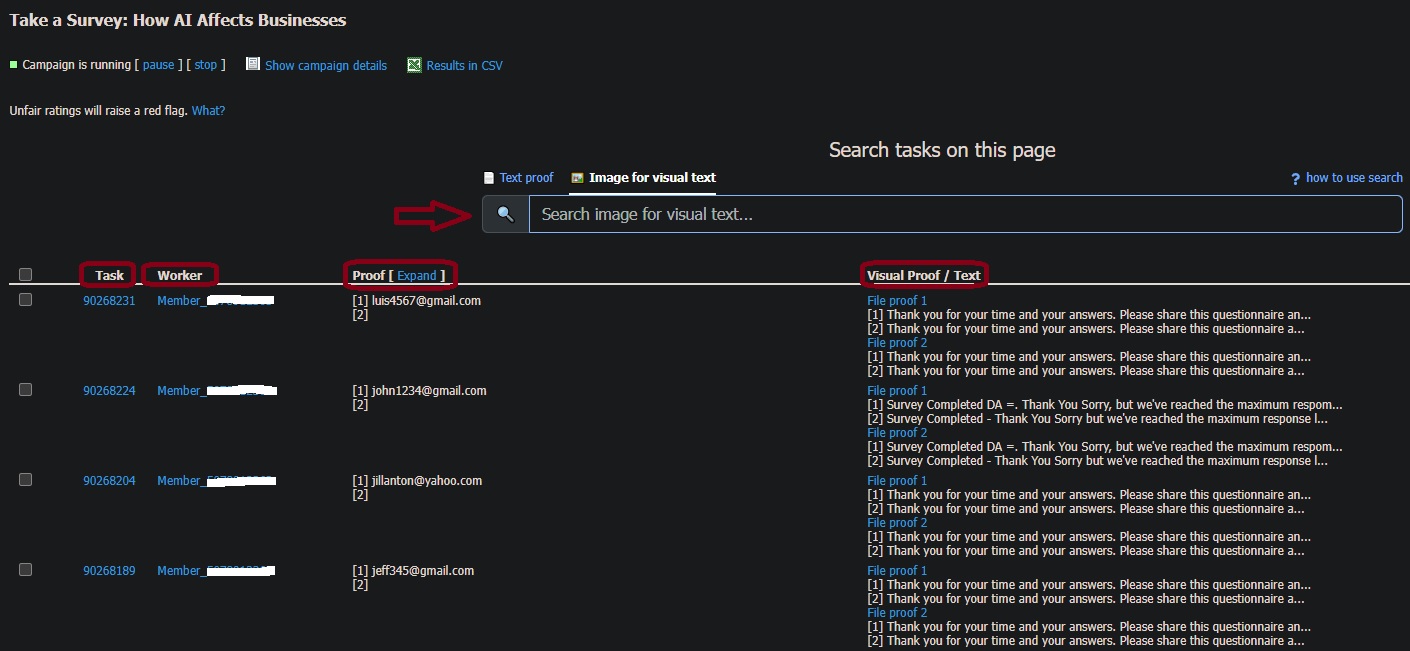
Below the search bar, the page displays a list of Task IDs, Worker IDs, and their corresponding proofs, which can be expanded or collapsed for easier viewing. This layout allows Employers to review multiple submissions in an organized way without having to open each one individually.
Let’s take the keyword phrase “thank you” as an example, shown in a Survey campaign. In this campaign, workers were asked to complete a survey, submit their email address, and upload a photo after completing the survey. Expected photo contains the text “Thank you for your time and your answers.”
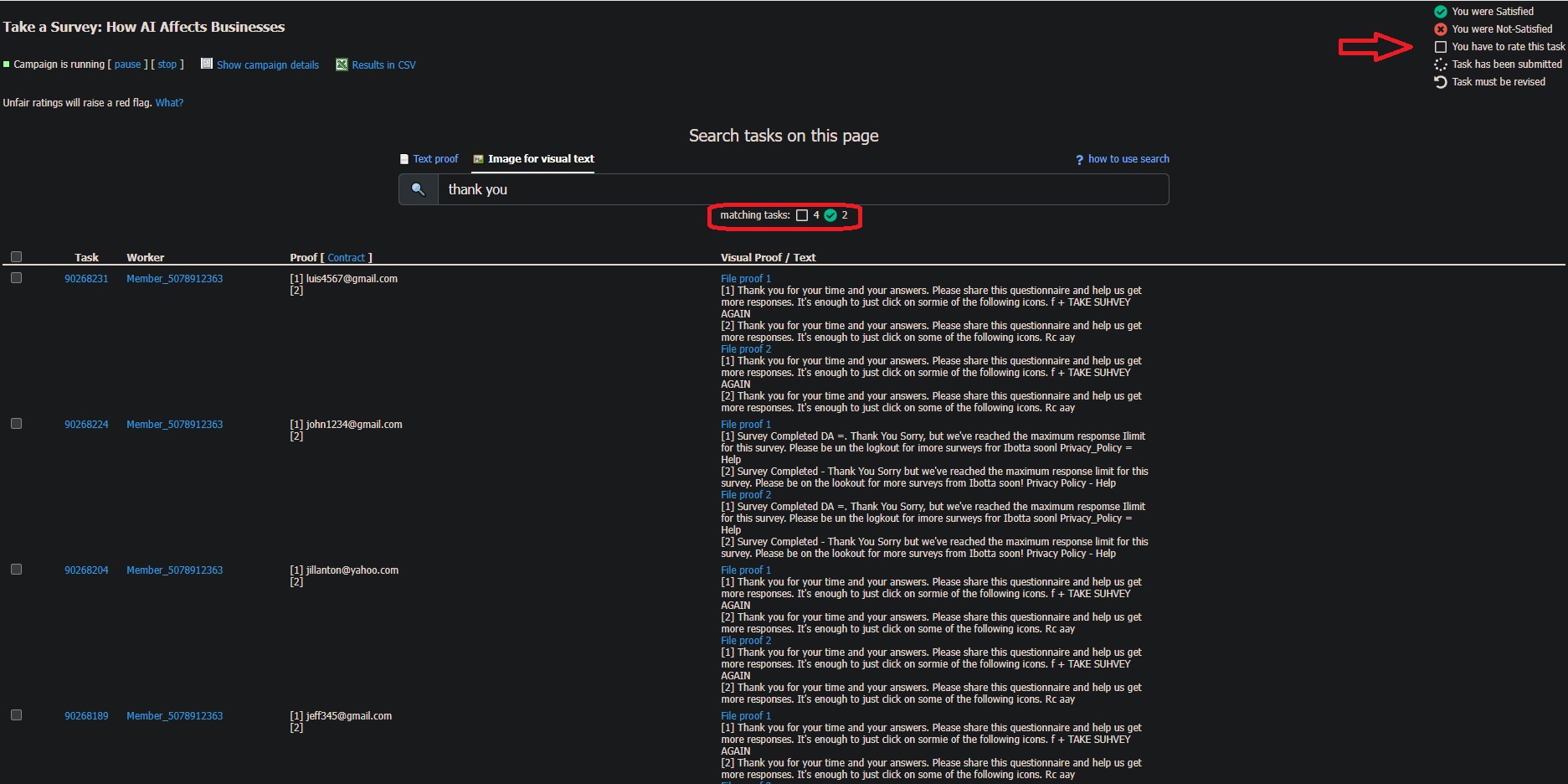
To easily check if the submitted image is correct, you can choose to type “thank you” in the search bar for visual text. The system instantly scans all image proofs and displays only those that include that phrase. The search results will also show the number of matching tasks, allowing the Employer to quickly confirm which submissions meet the campaign’s requirements. On the right side of the page, a legend is displayed to help Employers easily identify the meaning of each icon. It indicates whether a task was marked Satisfied, Not Satisfied, Needs to be Rated, Task has been submitted, or Must Be Revised. This makes the review process faster and more organized.
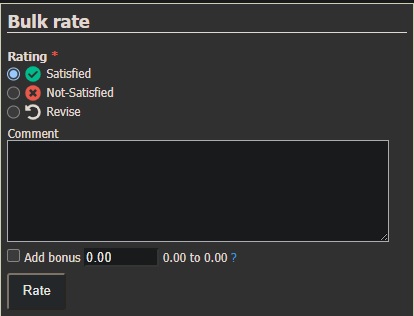
Once the correct submissions are identified, the Employer can scroll down to the Bulk Rate section at the bottom of the page. From there, tasks can be rated as Satisfied, Not Satisfied, or Revise, with the option to add comments or bonuses. With the smooth integration of search and rating tools, Employers can review and evaluate multiple tasks within the Standard platform more quickly and efficiently.
Search Task under the TTV Platform
On the TTV platform, the Search Task feature offers a more structured and detailed interface for Employers to review both text proofs and image proofs. At the top of the page, Employers can use the search bar to enter a keyword or phrase to quickly locate specific submissions. Similar to the Standard platform, the search can be performed using either Text proof or Image for visual text, depending on the proof type used in the campaign.
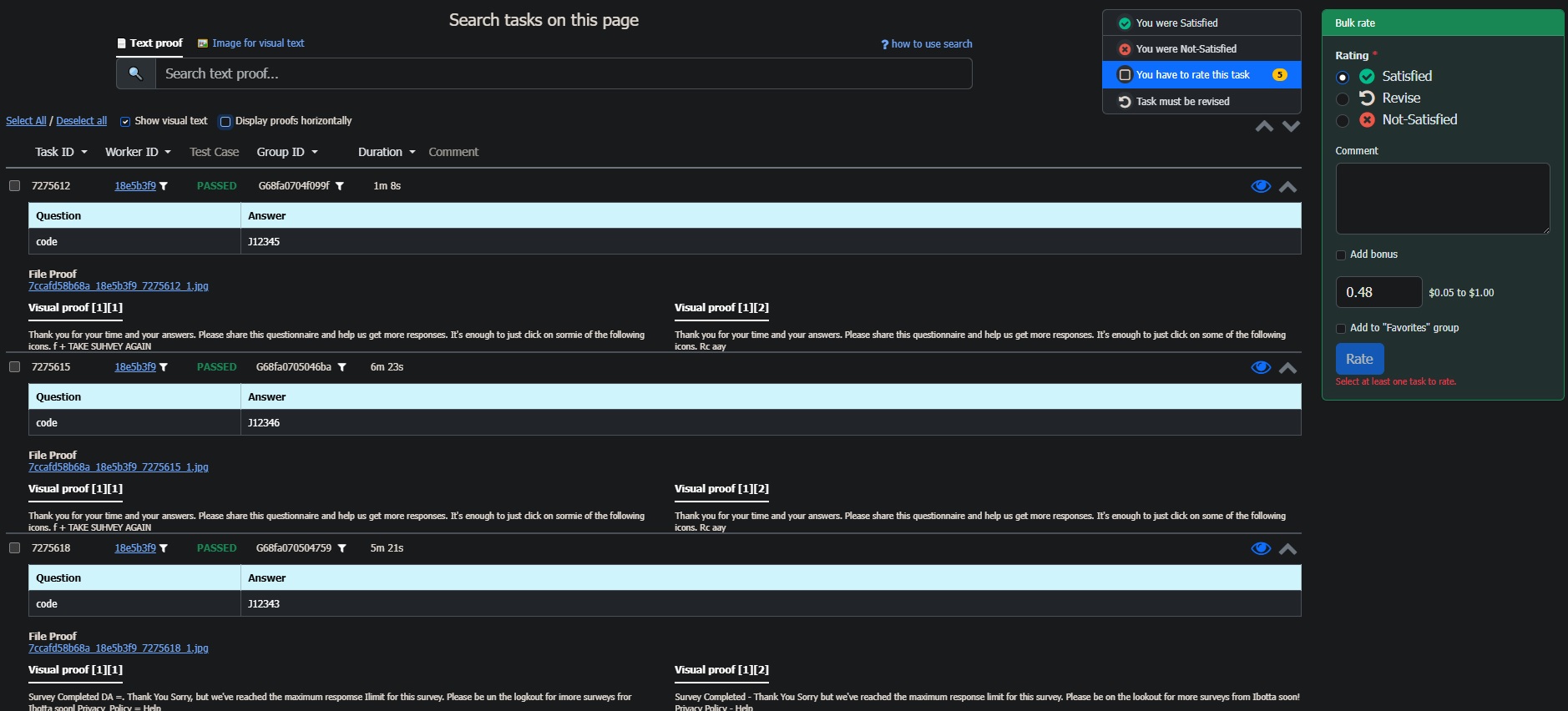
In the example shown, the campaign is a Survey task where workers were required to complete a questionnaire, submit a code as text proof, and upload an image that includes the phrase “Thank you for your time and your answers.” When the Employer types “thank you” in the search bar, the system filters and displays only those submissions containing that phrase, allowing for faster and more accurate verification.

Below the search bar, several columns provide important information for campaign management:
- Test Case – Employers can upload a test-case file (for example, a sample answer set or verification code). The system automatically compares each Worker’s proof against that file. Submissions that match the test-case criteria are marked Passed, while those that don’t are marked Failed. For instance, in a survey campaign where a unique code appears only after completing the survey, the Employer can upload that code as the test case. Proofs containing the correct code will be marked Passed, while any submission without it will automatically Fail. This automated process helps Employers quickly identify valid submissions before manual review.
- Group ID – This column identifies tasks that belong to the same task group. Some Employers require multiple Workers to complete the same task, and these tasks or slots are grouped together under a single Group ID. For example, if an Employer creates a campaign with variables and assigns five Workers to work on the same task, all submissions from those five Workers will share the same Group ID. When you click the filter icon (a small funnel symbol) beside the Group ID or Task ID column, it allows Employers to quickly display all related submissions within a specific group. It helps them easily review and compare results from multiple Workers who worked on the same task.
- Duration – This shows how long it took a Worker to complete the task, from the time it was accepted until it was submitted. By reviewing the duration, Employers can assess whether the time spent aligns with the expected effort for the task. Thus, helping to spot submissions that may have been completed too quickly or unusually slowly.
For example, if a survey is expected to take at least five minutes to finish but the duration shows only three minutes, the submission may be considered invalid or spam. - Comment – This section displays the notes or feedback provided by the Employer when rating a task. Employers can use this area to leave remarks explaining why a task was rated as Satisfied, Not Satisfied, or Needs Revision, helping workers understand the reason behind the evaluation.
Each task line also includes the Task ID, Worker ID, Text proof and a link to view the Visual proof.
On the right side of the page, the eye icon can be clicked to show a template preview, allowing Employers to quickly review the task setup. Clicking the cursor icons expands the submission details for a closer view of the Workers’ proof and related information.
Additionally, Employers can use “Show Visual Text” to view extracted text from image proofs. The “Display Proofs Horizontally” option allows side-by-side viewing of proofs, enabling a more convenient comparison of multiple tasks at once.
In essence, the “Search Task” feature is more than just a tool. It’s a powerful ally for Employers seeking to simplify their workflow while ensuring top-quality results. By enabling quick searches, filtered views, and visual proof verification, it streamlines task evaluation, saves time, and ensures accuracy. With enhanced control and transparency, Employers can confidently manage campaigns, making the entire process smarter, more organized, and highly productive.
From search to verification, “Search Task” makes every submission count. 😉
No Comments so far.
Your Reply